
Appearance
Transactions
ExpenseAutomator can Import, search and manage all your transactions.
Transactions are the base foundation of ExpenseAutomator. Every time money comes in, or money comes out of your accounts, a transaction is recorded in the system. The transactions page provides an interface for viewing, filtering, and managing all your financial activity.
Transaction List
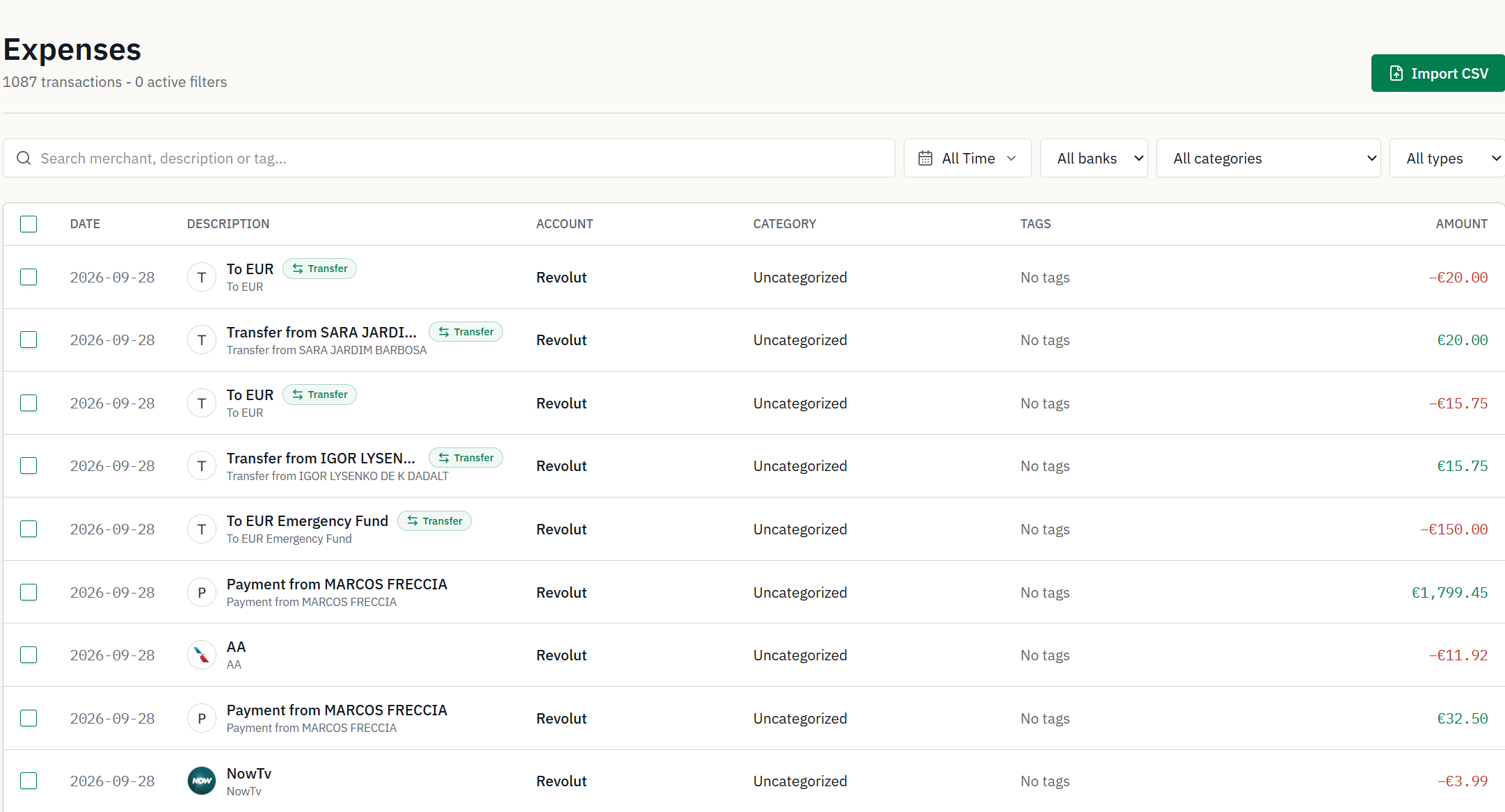
The transaction list shows a table containing all your financial activity. Each row display the date, description, account, category, tags and the amount.
For positive amounts (income), we will display it in green, and for negative amounts (expense) in red.
Filters
There are several filters available on the transactions list.
- Search bar: search by merchant, description or tag
- Calendar filter: All Time, Today, Yesterday, This Week, Last Week, This Month, Last Month, This Year, Last Year and Custom Range.
- Banks Filter: Search by all banks on which a transaction was recorded
- Categories filter: Search by budgets or categories
- Transaction Type filter: Search by Income or Expense
Import CSV
ExpenseAutomator allows you to bulk import transactions using CSV files. The list of supported banks are listed here.
WARNING
Unless instructed otherwise, do not edit exported files or change their data before importing them.
Import workflow
- Click on Import CSV located in the top right corner.
- Select the CSV statement.
- Click on Import CSV
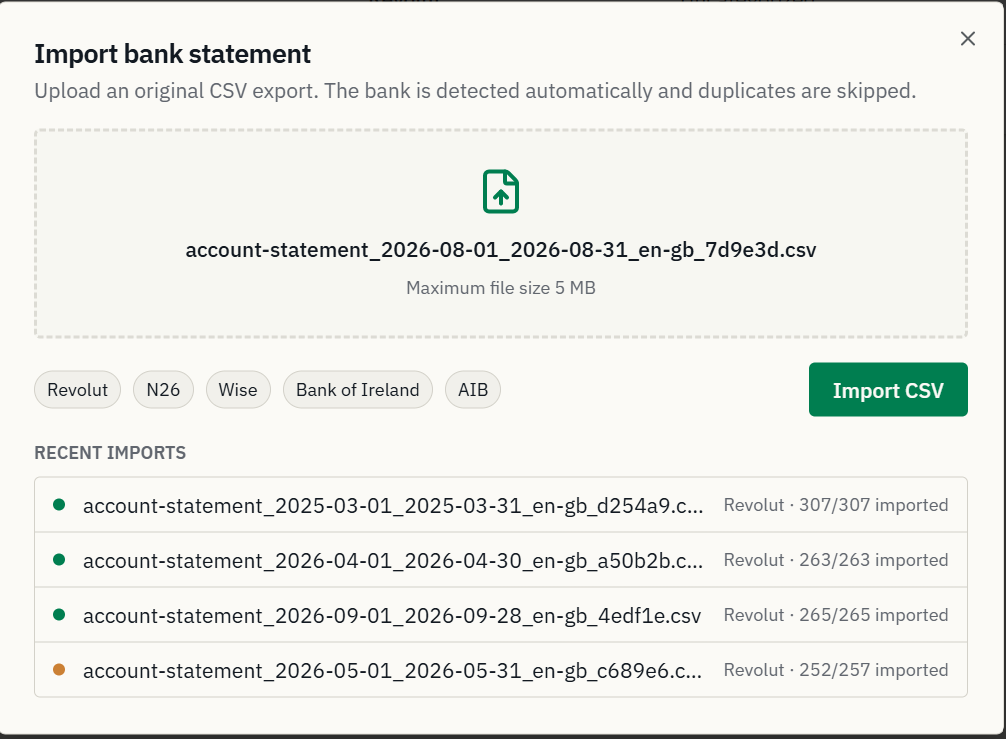
- After the file import is completed. We show the Bank and number of transactions imported.
After importing
Check the imported date range, transaction count, and totals. Resolve any uncategorized entries before relying on reports or budget comparisons.