
Appearance
Accounts
ExpenseAutomator automatically detects your accounts from imported transactions.
Accounts help you understand which banks are represented in your financial activity. You do not need to create an account manually. When transactions are imported, ExpenseAutomator uses their source bank to build the Accounts list.
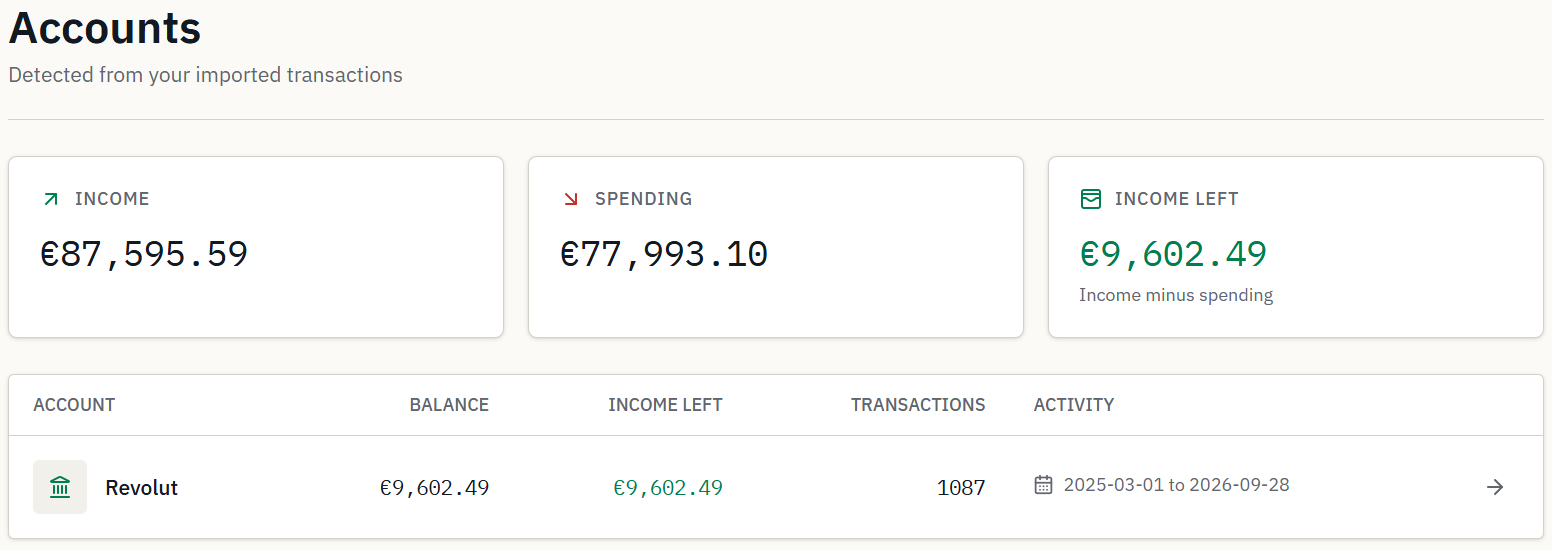
Accounts summary
The cards at the top of the Accounts page summarize activity across all detected accounts:
- Income: all imported money coming in
- Spending: all imported money going out
- Income left: income minus spending
Income left is displayed in green when it is positive and red when spending is greater than income.
Accounts List
The Accounts list shows all banks detected from the transactions available to you.
Each row displays:
- Account: the name of the detected bank
- Balance: the running balance calculated from imported transactions
- Income left: imported income minus imported spending
- Transactions: the number of transactions imported for that bank
- Activity: the date of the first and latest transaction recorded for the bank
The activity range helps you confirm how much transaction history is available for each account.
Click the arrow on the right side of an account to open its details.
INFO
Accounts are based on imported transaction data. They are not direct connections to your bank and do not update automatically.
Account details
The account details page gives you a closer look at the activity imported for one bank.
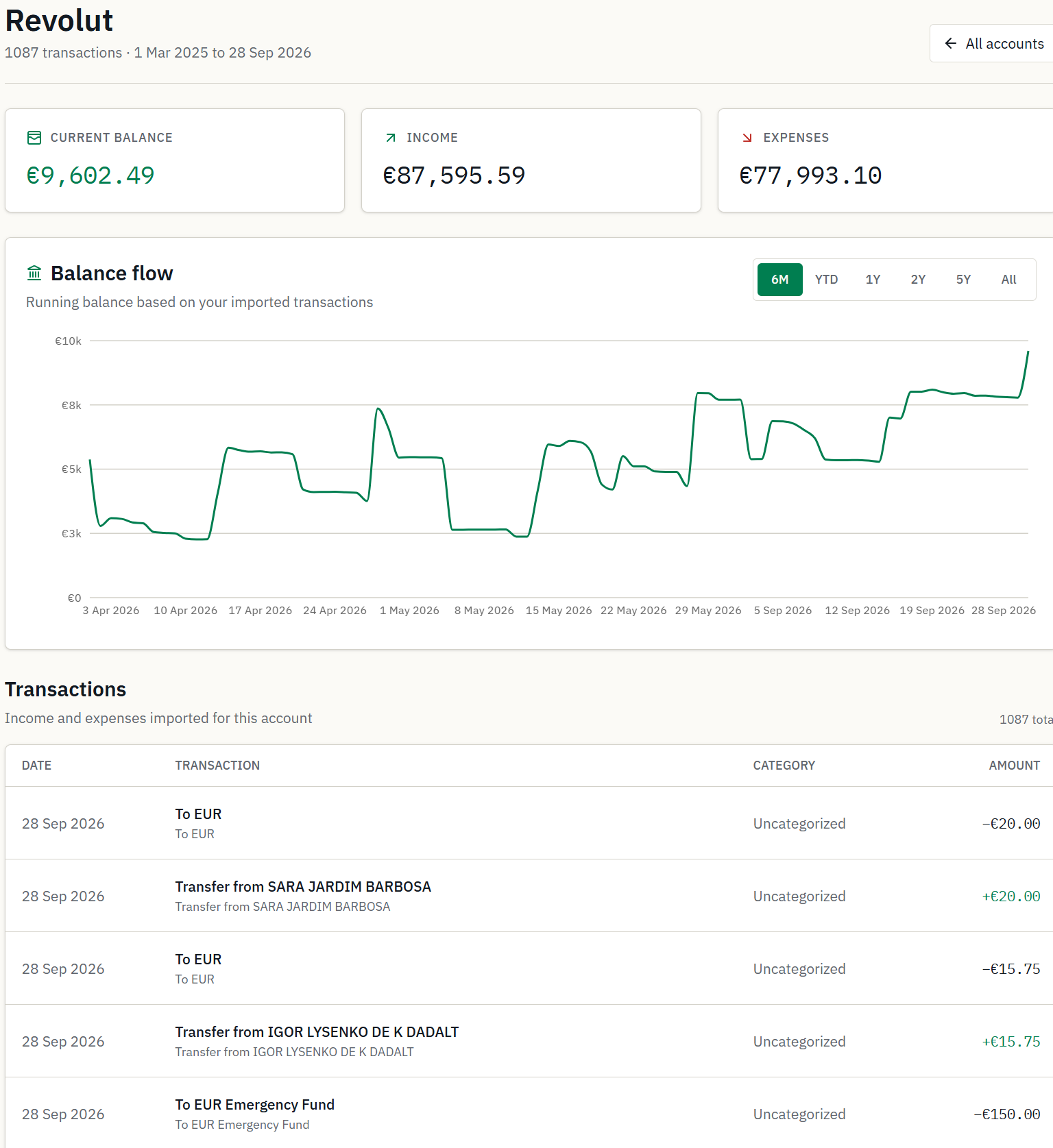
The heading shows the account name, total number of transactions and the available activity range. Click All accounts to return to the Accounts list.
Account totals
The cards at the top of the page display:
- Current balance: the running total of all imported transactions for the account
- Income: the total amount of imported money coming in
- Expenses: the total amount of imported money going out
Positive balances are displayed in green. Negative balances are displayed in red.
WARNING
The current balance is calculated from the transactions imported into ExpenseAutomator. It may not match your bank's current balance if the imported history is incomplete or newer transactions have not been imported.
Balance flow
The Balance flow chart shows how the calculated account balance changed over time.
Use the controls above the chart to select a period:
- 6M: the latest six months
- YTD: the current year to date
- 1Y: the latest year
- 2Y: the latest two years
- 5Y: the latest five years
- All: all imported account history
Hover over the chart to see the calculated balance on a particular date.
Account transactions
The transaction table contains the income and expenses imported for the selected account. Each row displays:
- The transaction date
- The payee and description
- The assigned category or budget
- The transaction amount
Positive amounts include a plus sign and are displayed in green. Use Previous and Next to move through the account's transaction history.