
Appearance
AI Chat
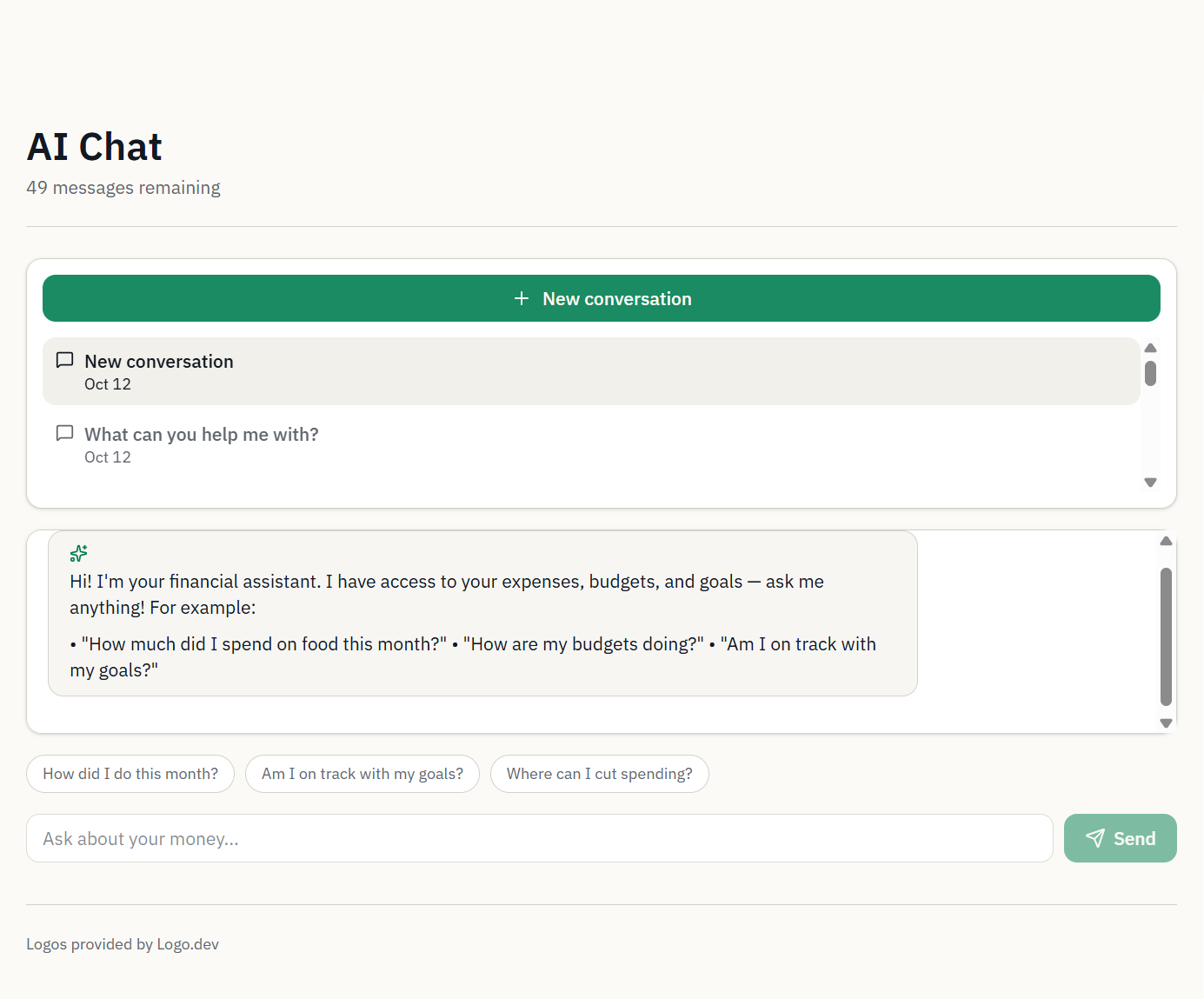
AI Chat answers questions using the financial information already recorded in ExpenseAutomator. Use it to explore your spending, budgets, savings goals and overall financial position in plain English.
INFO
AI Chat is available with the Premium plan.
Ask about your finances
You can ask questions such as:
- How much did I spend this month?
- Which categories account for most of my spending?
- Am I over budget anywhere?
- How are my savings goals progressing?
- Where could I reduce spending?
The assistant can format its answers using headings, lists and tables when that makes the information easier to understand.
WARNING
AI responses can make mistakes. Check important figures against your transactions, budgets and goals before making a financial decision.
Start a conversation
- Open AI Chat from the main navigation.
- Select one of the suggested questions, or enter your own question in Ask about your money.
- Click Send.
- Use a follow-up suggestion or enter another question to continue the conversation.
Your remaining message allowance is displayed below the page heading. Sending a message reduces the allowance by one.
Manage conversations
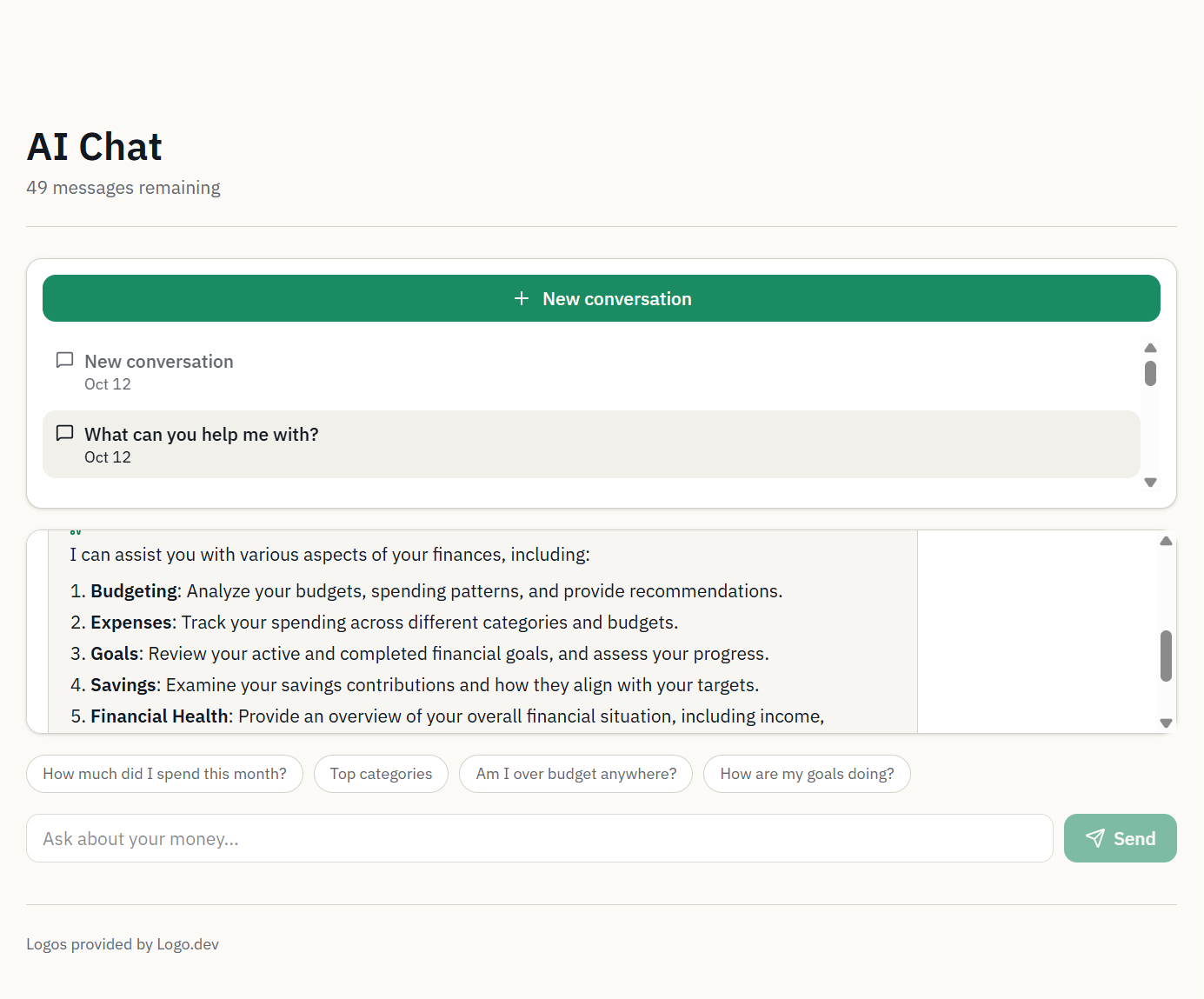
Each chat is saved in the conversation list on the left. Select a previous conversation to review its messages and continue where you stopped.
Click New conversation when you want to start with a fresh topic. Keeping different topics in separate conversations makes the history easier to find.
Telegram integration
Premium members can connect Telegram and ask ExpenseAutomator questions from a private chat with the ExpenseAutomator bot. The bot uses the same financial records as AI Chat, so import and categorise your transactions in the web app before asking questions.
The Integrations screen lists the Telegram features currently enabled for your account. These can include:
- Questions about your spending, budgets and goals
- New transaction drafts created from a text message
- Receipt details extracted from one supported image
- English voice notes transcribed and answered in text
Any new transaction remains a draft until you review and confirm it. The bot cannot move money, edit or delete existing transactions, or change your budgets.
Connect Telegram
- Open Settings.
- Select Integrations.
- Click Connect Telegram.
- Follow the link to Telegram and press Start in the bot chat.
- Send a question in plain English.
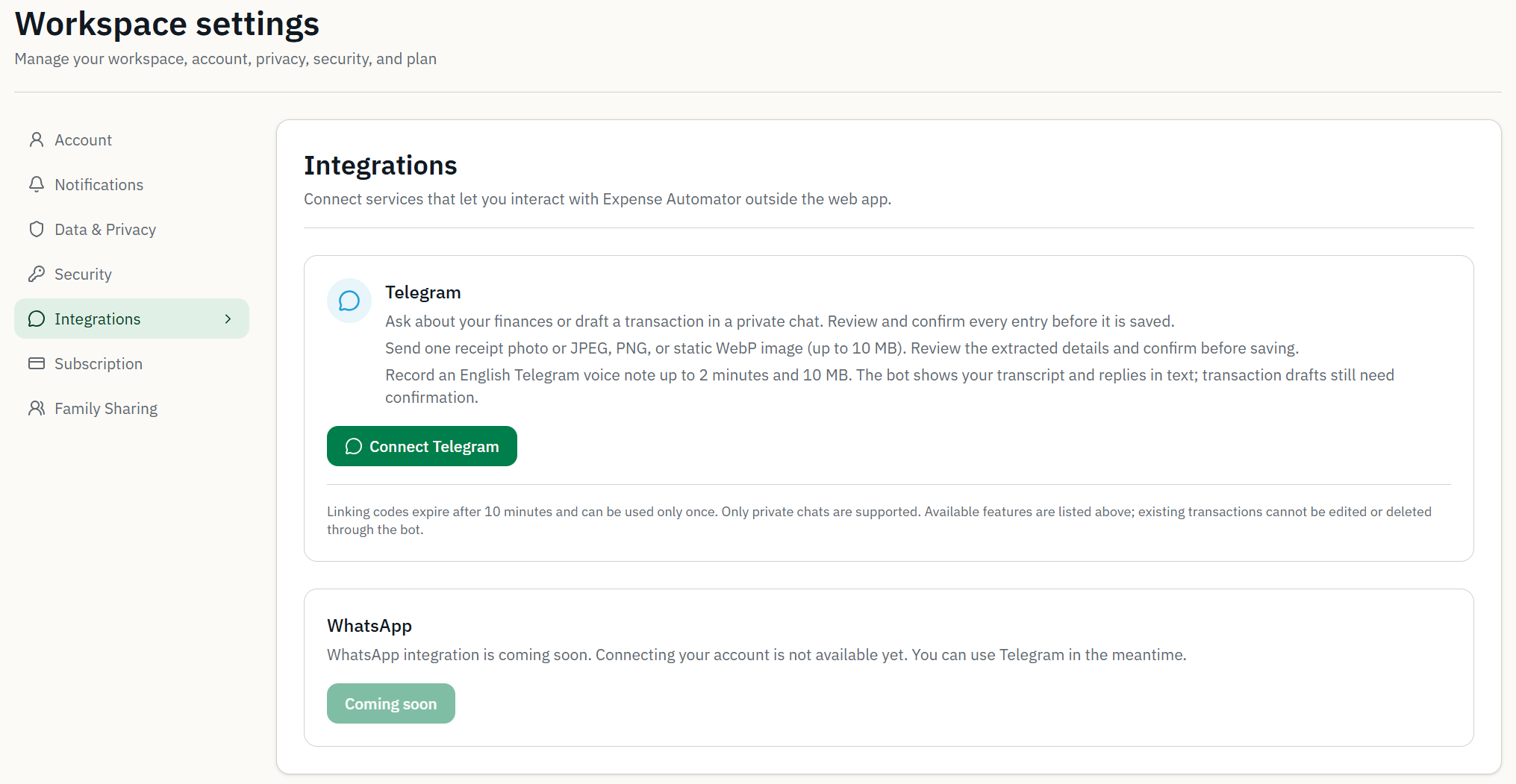
Linking codes expire after 10 minutes and can only be used once. If a code expires, return to Settings > Integrations and create another connection.
INFO
Only private Telegram chats are supported. Groups are not supported.
Receipts, voice notes and transaction drafts
If these features are listed as available on the Integrations screen:
- Send one JPEG, PNG or static WebP receipt image of up to 10 MB.
- Record an English Telegram voice note of up to 2 minutes and 10 MB.
- Review the extracted or transcribed transaction details before confirming the draft.
The bot replies to voice notes in text. Uploaded audio files, image albums and PDF receipts are not supported.
Disconnect Telegram
Open Settings > Integrations and click Disconnect, or send /unlink in the private bot chat. You can connect the account again later by creating a new single-use link.