
Appearance
Budgets
Budgets help you plan spending and compare that plan with recorded transactions.
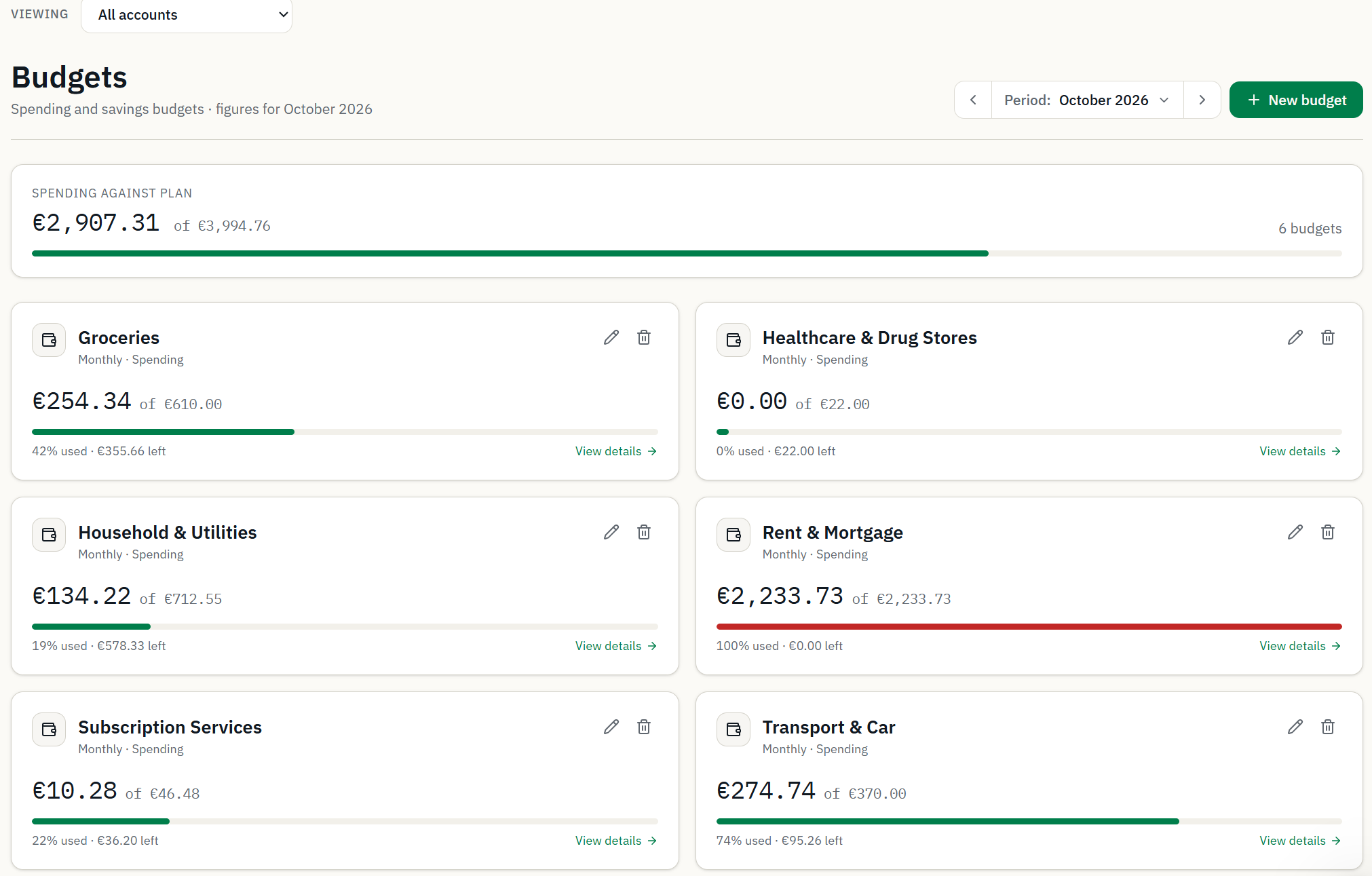
The Budgets page shows spending budgets for the selected month. The summary at the top compares the combined recorded amount with the combined planned amount.
Understand the budget cards
Each budget card displays:
- The budget name, period and type
- The recorded amount and planned amount
- The percentage used
- The amount remaining, or the amount over budget
- A progress bar of how much that budget has been consumed so far.
Spending above the planned amount is highlighted.
Use the month selector at the top of the page to review another monthly snapshot.
INFO
Budget progress comes from transactions assigned to that budget. A transaction that is uncategorized or assigned to a category is not included.
Create a budget
- Click New budget.
- Enter a name and choose whether this is a Spending or Savings budget.
- Choose a category and icon.
- Enter the planned amount and currency.
- Select a weekly, monthly, quarterly or yearly period.
- Set the alert threshold.
- Click Save budget.
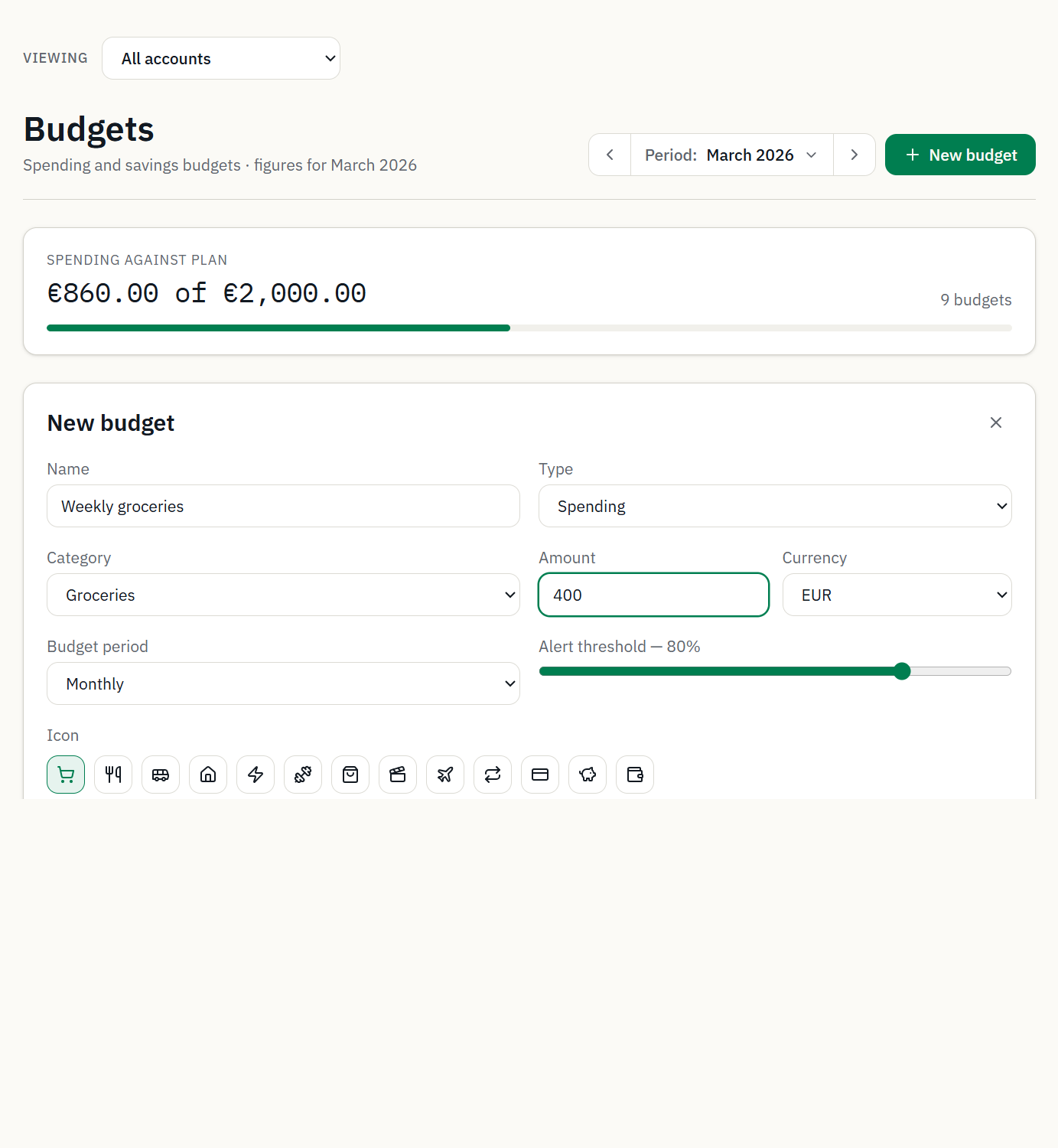
Budget amounts must be greater than zero. Available currencies are EUR, USD and GBP.
The alert threshold can be set from 10% to 100% in increments of 5%. It is shown with the budget details so you can see when spending is approaching the planned amount.
Review budget details
Click View details on a budget card to open its analysis page.
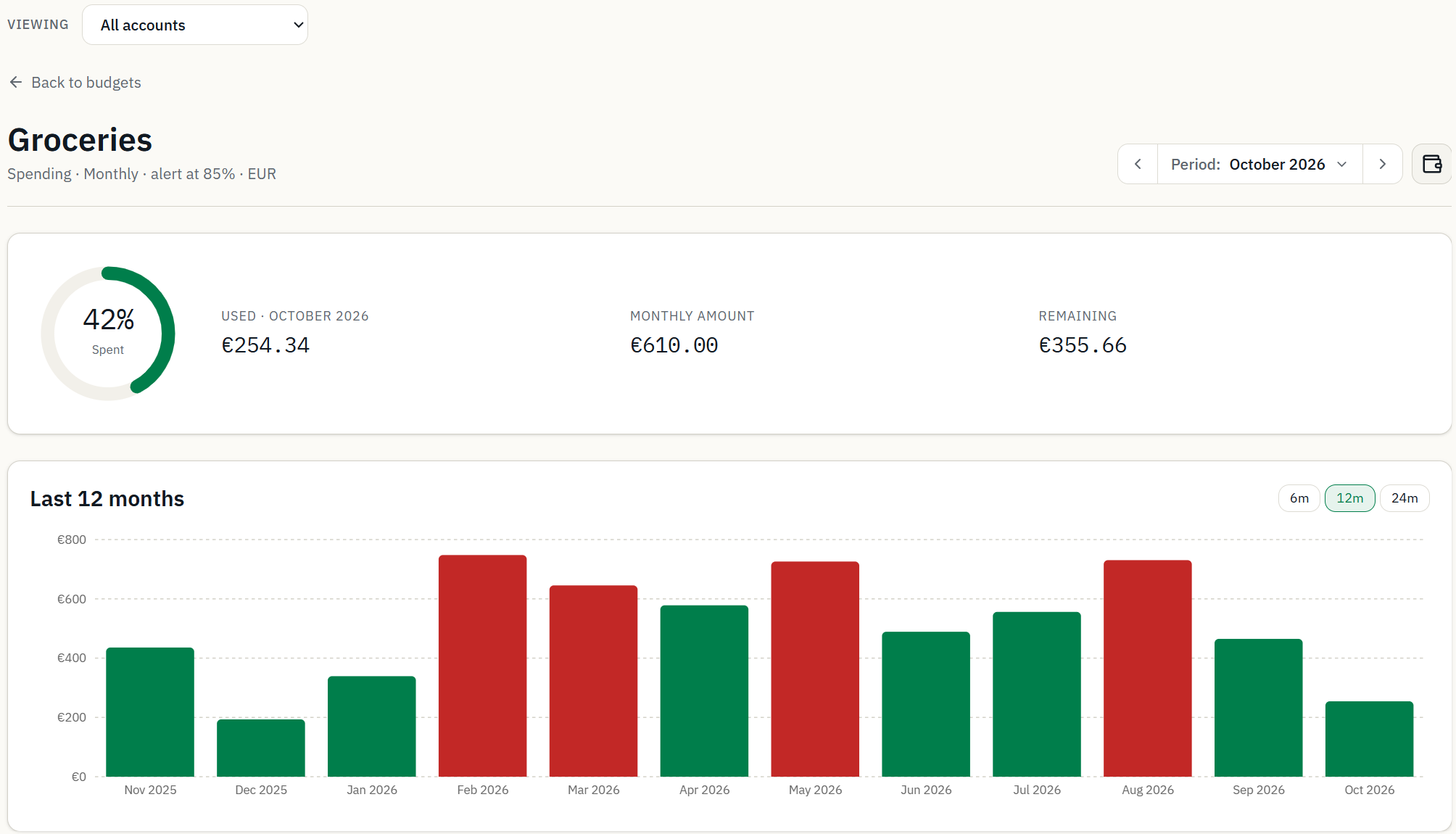
The summary shows:
- Percentage used
- Amount used in the selected month
- Planned amount for the budget period
- Amount remaining or amount over budget
The detail page also includes:
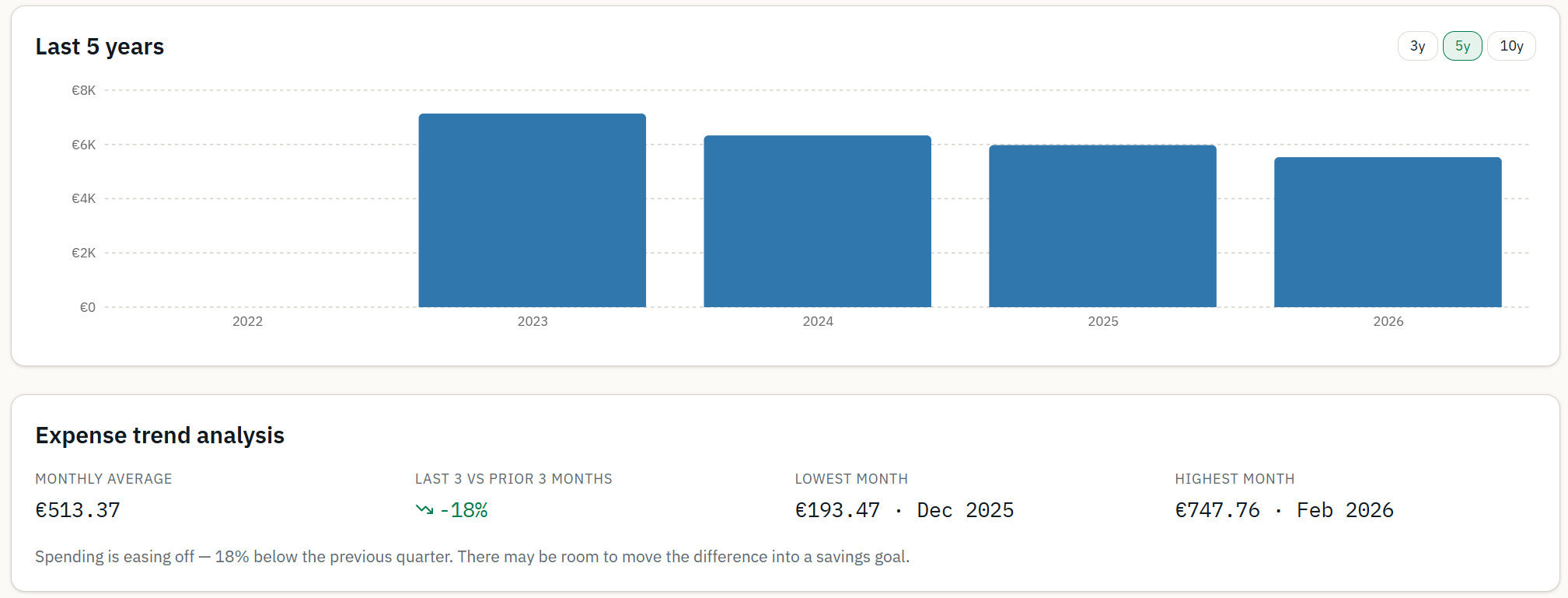
- Spending for the last 6, 12 or 24 months
- Annual spending for the last 3, 5 or 10 years
- Monthly average
- A comparison of the latest three months with the previous three
- Lowest- and highest-spending months
- Recent transactions assigned to the budget
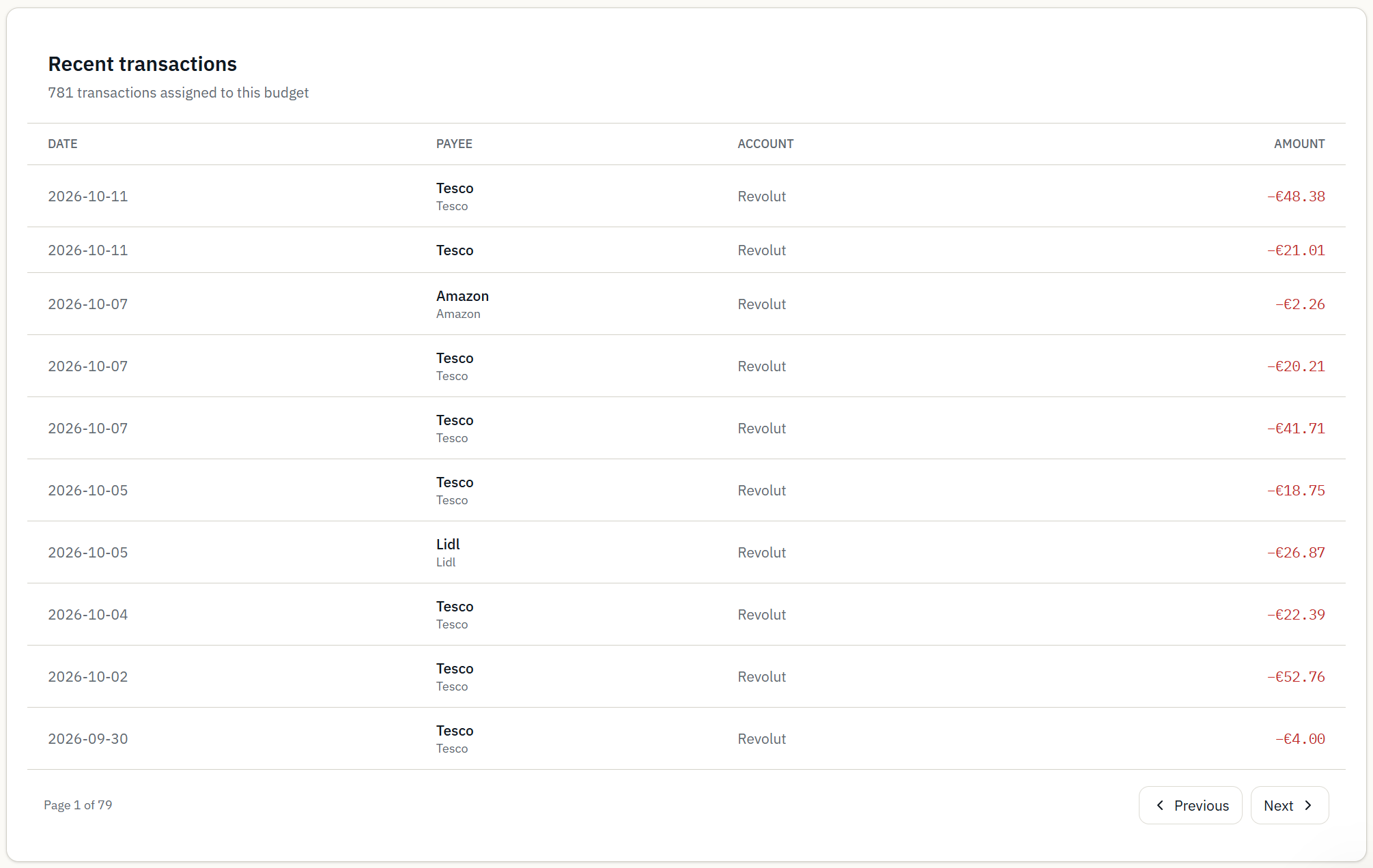
Use the month selector to change the reporting month. The charts and recent transactions update with the selected period.
Review and update transactions
The recent-transactions table lists the date, payee, account and amount for transactions assigned to the budget.
Click a transaction to open its details. From there, you can correct its category, description, notes or tags. Updating or deleting a transaction also refreshes the budget totals.
Edit or remove a budget
On the main Budgets page:
- Click the pencil icon to edit the name, type, amount, currency, period, alert threshold or icon.
- Click the bin icon to remove the budget, then confirm the prompt.
Changes are reflected in the Dashboard and budget detail views.
Suggested workflow
- Start with a small number of meaningful spending categories.
- Choose amounts based on recent activity rather than ideal targets.
- Assign recurring transactions with categorization rules.
- Review progress regularly during the period.
- Adjust future budgets when circumstances change.
TIP
Consistent transaction categorization produces more useful budget comparisons.