
Appearance
Rules
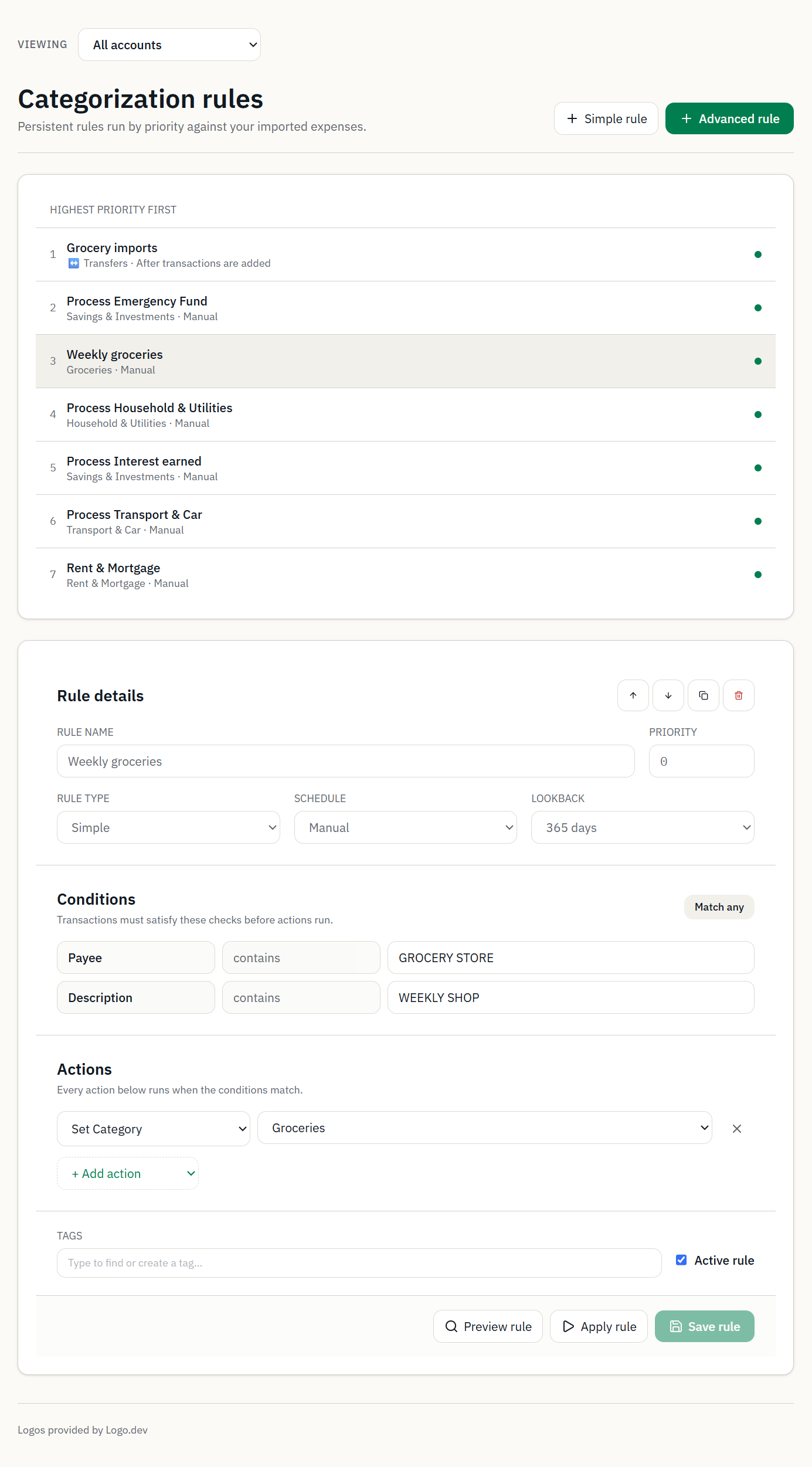
Categorization rules automate repetitive transaction updates. A rule checks uncategorized transactions against conditions you define, then performs one or more actions when a transaction matches.
Rules run from highest to lowest priority.
When to create a rule
Rules are most useful for recurring merchants or descriptions that reliably belong to the same category or budget. For example, you can create a rule that recognises a supermarket in the payee or description and assigns matching transactions to Groceries.
You can also use rules to:
- Append a note to matching transactions
- Add tags
- Ignore matching transactions so they are excluded from reports and totals
- Run categorization automatically after transactions are imported
Create a rule
Open Rules from the main navigation, then choose:
- Simple rule for a payee or description match
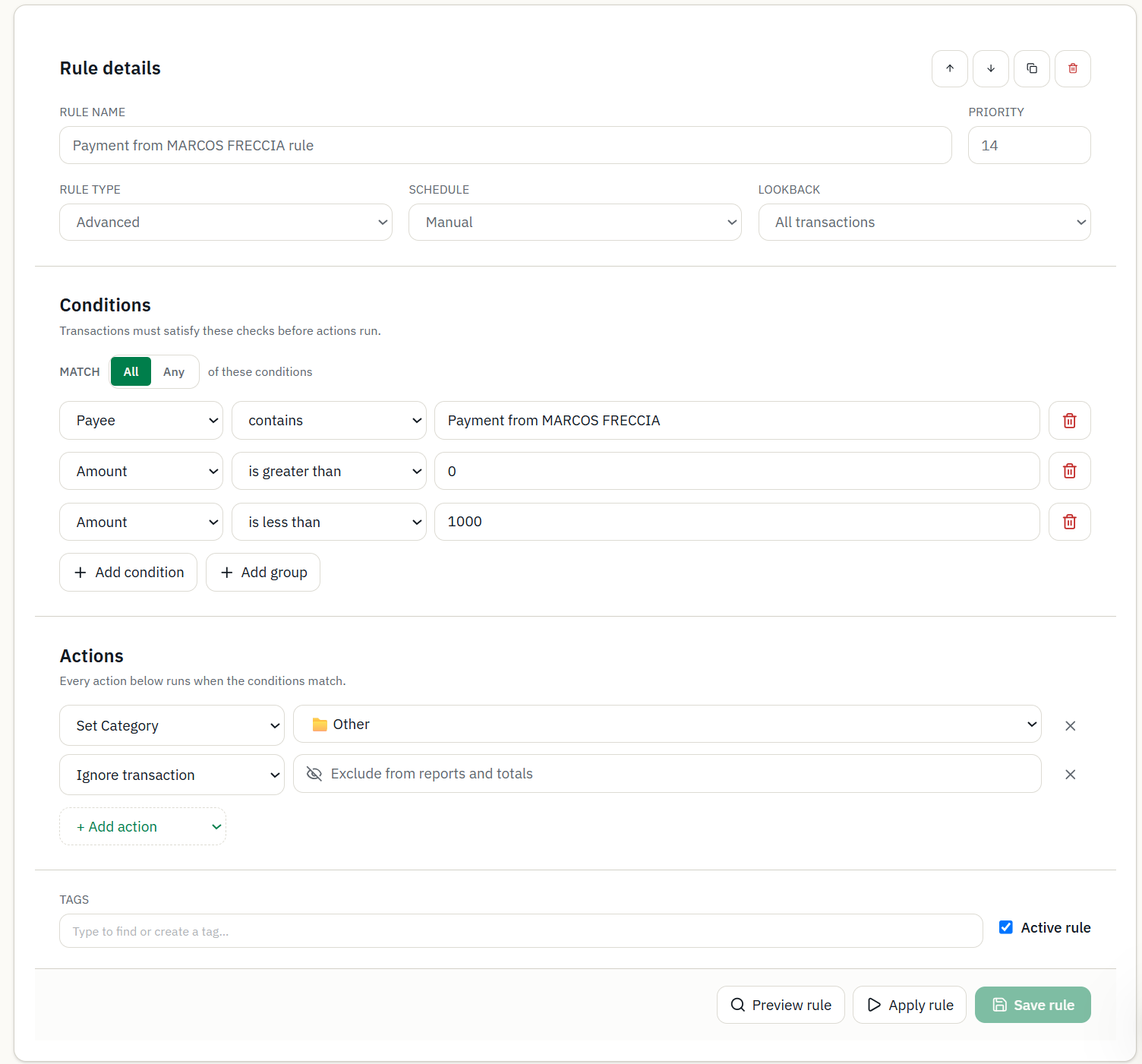
- Advanced rule for multiple conditions, comparison operators or condition groups
At least one category or budget must already exist. ExpenseAutomator creates the rule with a default category action; review that action, configure the rule, preview the matches, then save your changes.
Simple rules
A simple rule provides two optional conditions:
- Payee contains
- Description contains
These conditions use Match any. If both values are present, a transaction matches when either its payee or its description contains the corresponding text.
Use a distinctive merchant name or statement description. Very short or common text can match transactions you did not intend to change.
Advanced rules
Advanced rules support up to 25 conditions. Available fields include:
- Payee
- Description
- Amount
- Booking date
- Transaction type
- Currency
You can compare values using operators such as contains, equals, starts with, is greater than, is between, is empty and matches pattern.
Choose All when every condition in a group must match, or Any when one matching condition is enough. Nested groups let you combine these approaches in the same rule.
For pattern matching, use * for any amount of text and ? for one character.
Choose what a rule does
Every configured action runs when the conditions match. A rule can:
- Set Category: assign a matching transaction to a budget or category
- Append Notes: add text to the transaction's notes
- Ignore transaction: exclude the transaction from reports and totals
Use + Add action to combine actions. You can also attach tags to matching transactions.
Leave Active rule selected when the rule should be available to scheduled runs. Clear it when you want to keep the configuration without running it automatically.
Set the schedule and lookback
The schedule controls when the rule runs:
| Schedule | Behaviour |
|---|---|
| Manual | Runs only when you choose Apply rule |
| Weekly | Runs once a week |
| Every two weeks | Runs every two weeks |
| Monthly | Runs once a month |
| Custom cron | Uses a five-field numeric cron expression; Premium only |
| After transactions are added | Runs asynchronously after an import |
Large imports using After transactions are added can be combined into one rule run.
The Lookback setting limits the transactions considered by previews and rule runs. Select a period from 7 to 365 days, or choose All transactions.
Preview and apply a rule
Click Preview rule to see how many uncategorized transactions match before making changes. The preview lists the affected transactions and uses the conditions currently displayed, including unsaved changes.
If the preview is correct:
- Save the rule if you want to keep your changes.
- Click Apply rule, or use the apply button shown in the preview.
- Review the confirmation carefully.
- Confirm the application.
Keep the page open while matching transactions are updated.
Review rules carefully
Use a pattern that is specific enough to avoid unrelated transactions. Review the results after creating or changing a rule, especially when merchant descriptions are short or ambiguous.
WARNING
Applying a rule updates every matching uncategorized transaction within the selected lookback period. Preview the rule before applying it.
Manage existing rules
Select a rule from the list to edit it. The list is ordered with the highest priority first.
From Rule details, you can:
- Move the rule up or down in priority
- Change its name, schedule, lookback, conditions, actions or tags
- Duplicate the rule as a starting point for another rule
- Deactivate the rule temporarily
- Delete the rule
Click Save rule after editing. An Unsaved changes message appears when the displayed configuration differs from the saved rule.