
Appearance
Goals
Goals help you turn a future expense or savings target into something you can track.
You can use a goal for an emergency fund, a large purchase, paying off debt, or a long-term target. Each contribution updates the progress bar, so you can see how much you have saved and how much is still needed.
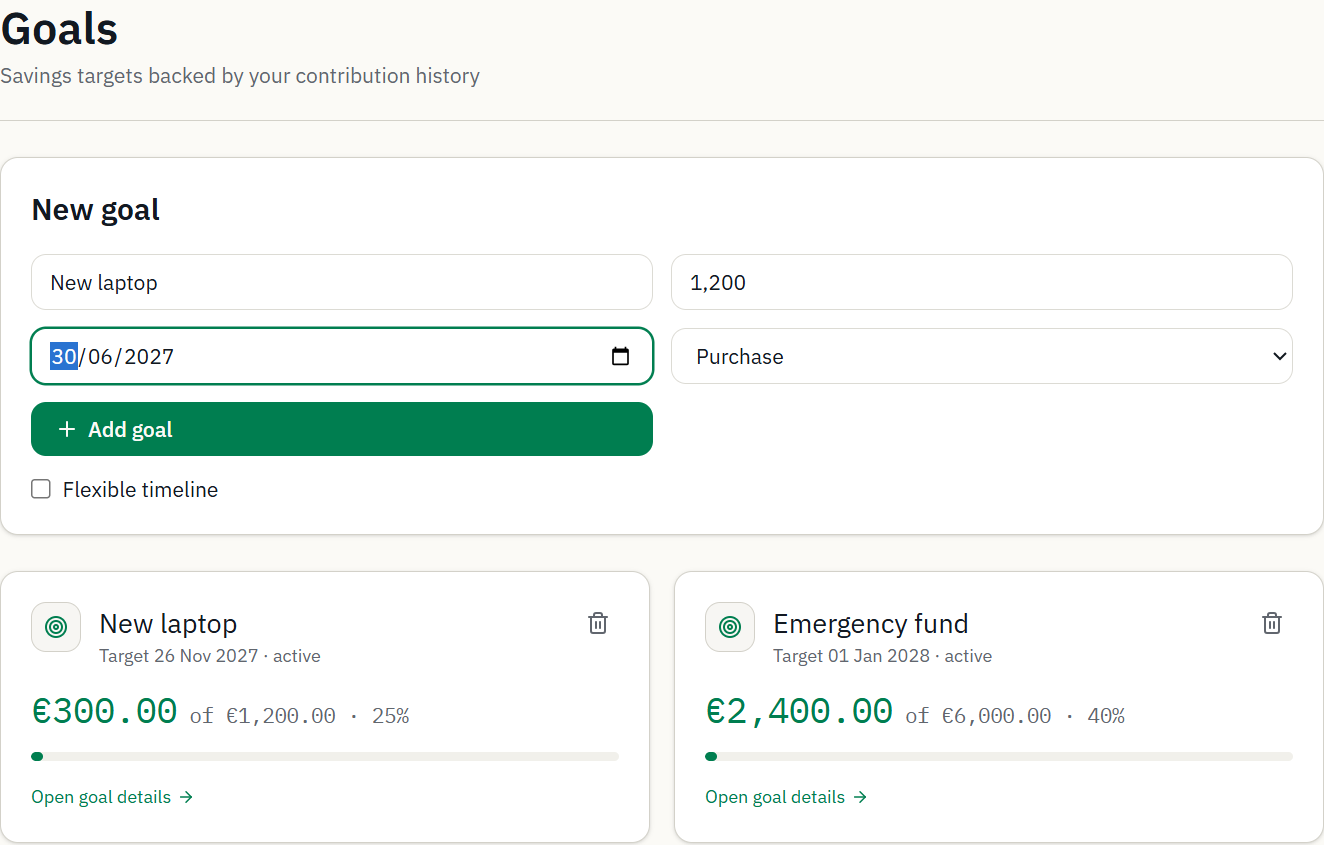
Goals list
The Goals page shows all your current goals. Each card displays the goal name, target date or flexible timeline, status, amount saved, target amount, and percentage completed.
Click Open goal details to review or update a goal.
Create a goal
- Enter a name for the goal.
- Enter the target amount.
- Choose a target date.
- Select the type of goal.
- Click Add goal.
The available goal types are:
- Savings
- Debt payoff
- Purchase
- Long-term / net worth
If you do not have a specific deadline, select Flexible timeline instead of entering a target date.
TIP
Give the goal a clear name such as “Emergency fund” or “New laptop”. It will be easier to recognise when adding contributions later.
Goal details
The goal details page shows your saved amount, progress percentage, target, and remaining amount.
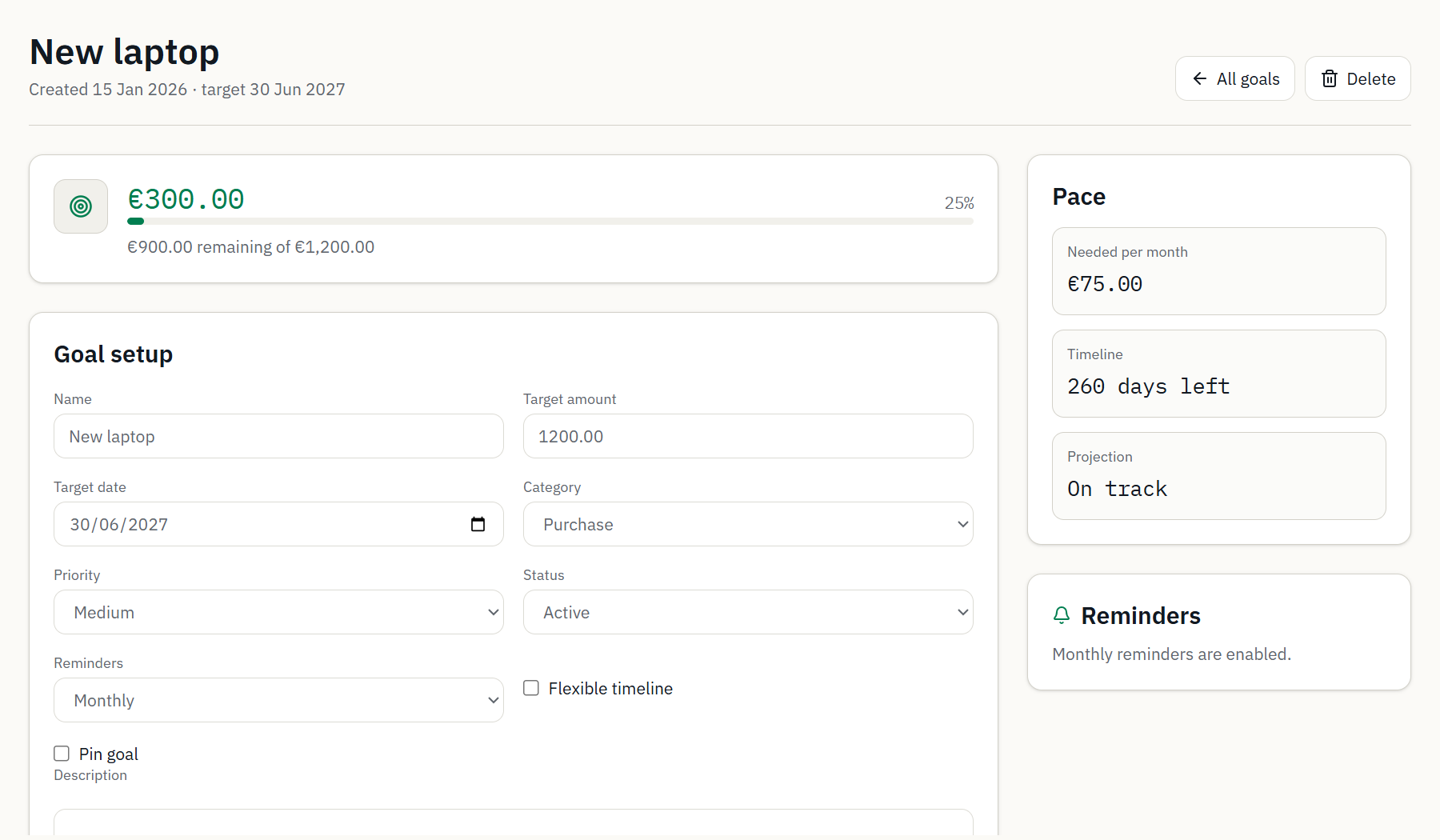
From this page, you can change:
- Name and description
- Target amount and target date
- Goal category
- Priority
- Status
- Reminder frequency
- Flexible timeline
- Whether the goal is pinned
The available statuses are Active, Paused, Completed, and Cancelled.
Click Save after making changes.
Add a contribution
Use the Contribution history section when you put money towards the goal.
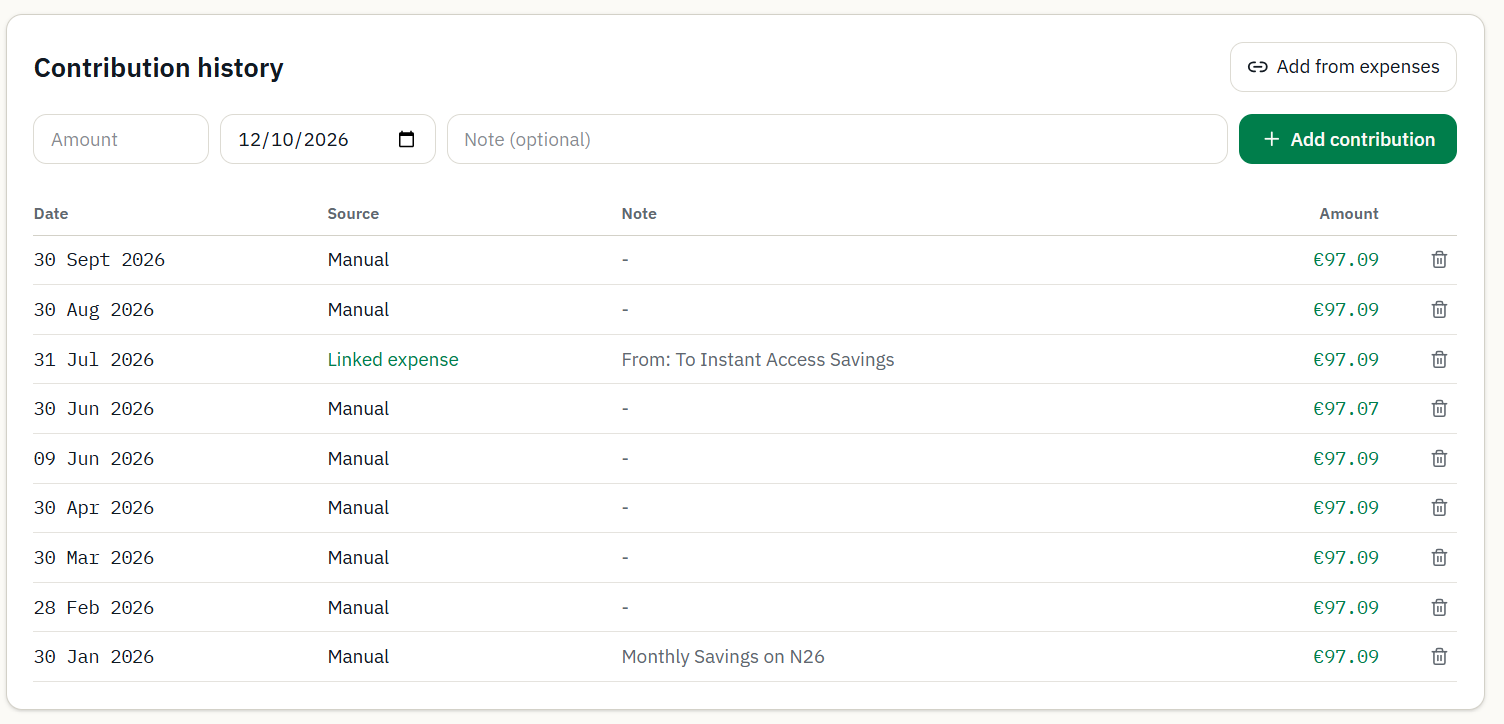
- Enter the contribution amount.
- Select the date.
- Add an optional note.
- Click Add contribution.
The contribution is added to the history and the goal progress is updated.
Contribution history shows the date, source, note, and amount. Click the bin icon beside a contribution if it was added by mistake.
Add a contribution from an expense
You can also use an existing transaction as a contribution.
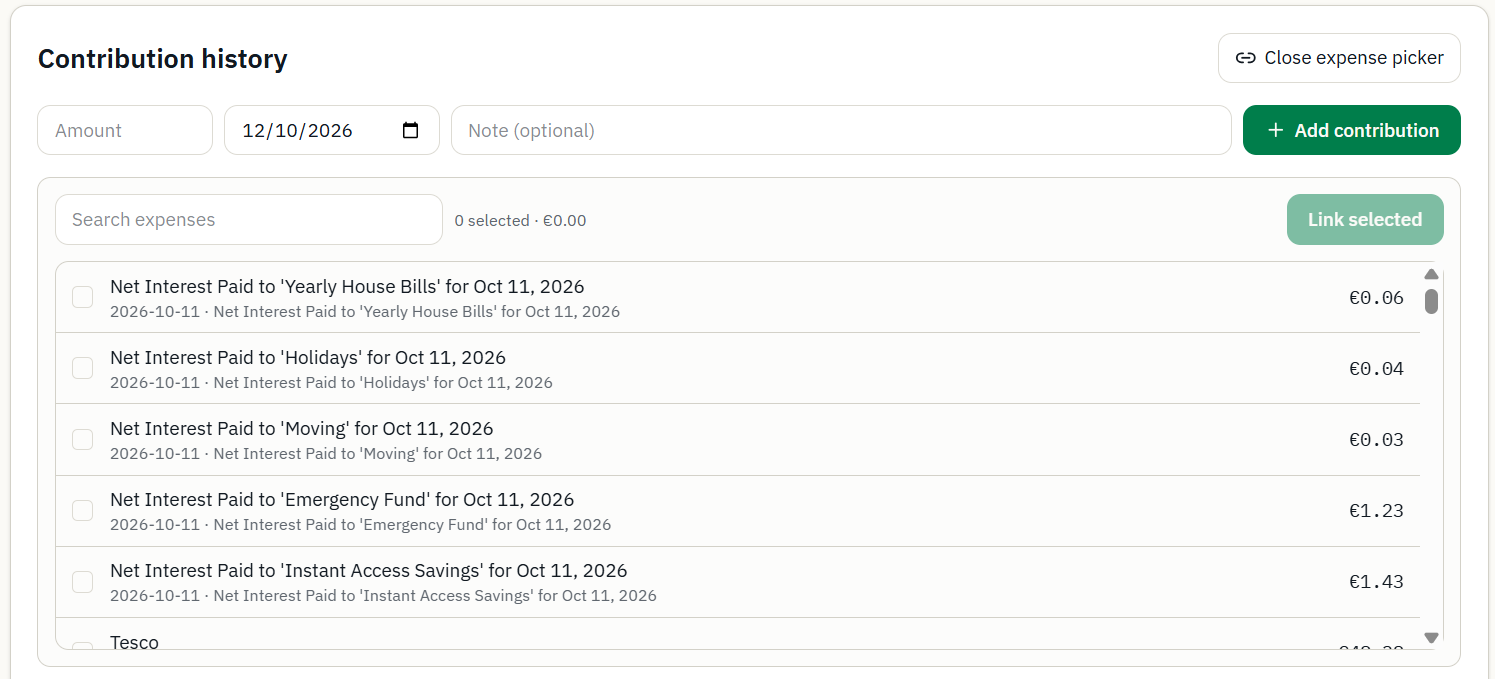
- Click Add from expenses.
- Search for the transaction.
- Select one or more entries.
- Check the selected total.
- Click Link selected.
Linked transactions remain available from the contribution history, so you can open the original transaction when you need to check it.
Pace and timeline
The Pace section helps you understand what is needed to reach the goal. It shows:
- The amount needed each month
- The number of days remaining, or Flexible when there is no deadline
- Whether the goal is on track or behind schedule
These figures change as you add contributions or update the target and timeline.
Reminders
Choose how often you want to be reminded about the goal:
- None
- Daily
- Weekly
- Every two weeks
- Monthly
The selected reminder schedule is shown beside the goal's pace information.
Savings and investment movements
If a savings or investment movement is linked to the goal, it appears in the goal details.
Only movements marked Included in Goal progress count towards the total. Movements waiting for goal reconciliation do not update progress until they are confirmed.
These movements are kept separately from the manual contribution history.
Delete a goal
Open the goal and click Delete. Review the confirmation carefully before removing it.
WARNING
Deleting a goal removes the goal and its contribution history. Check that you have selected the correct goal before confirming.